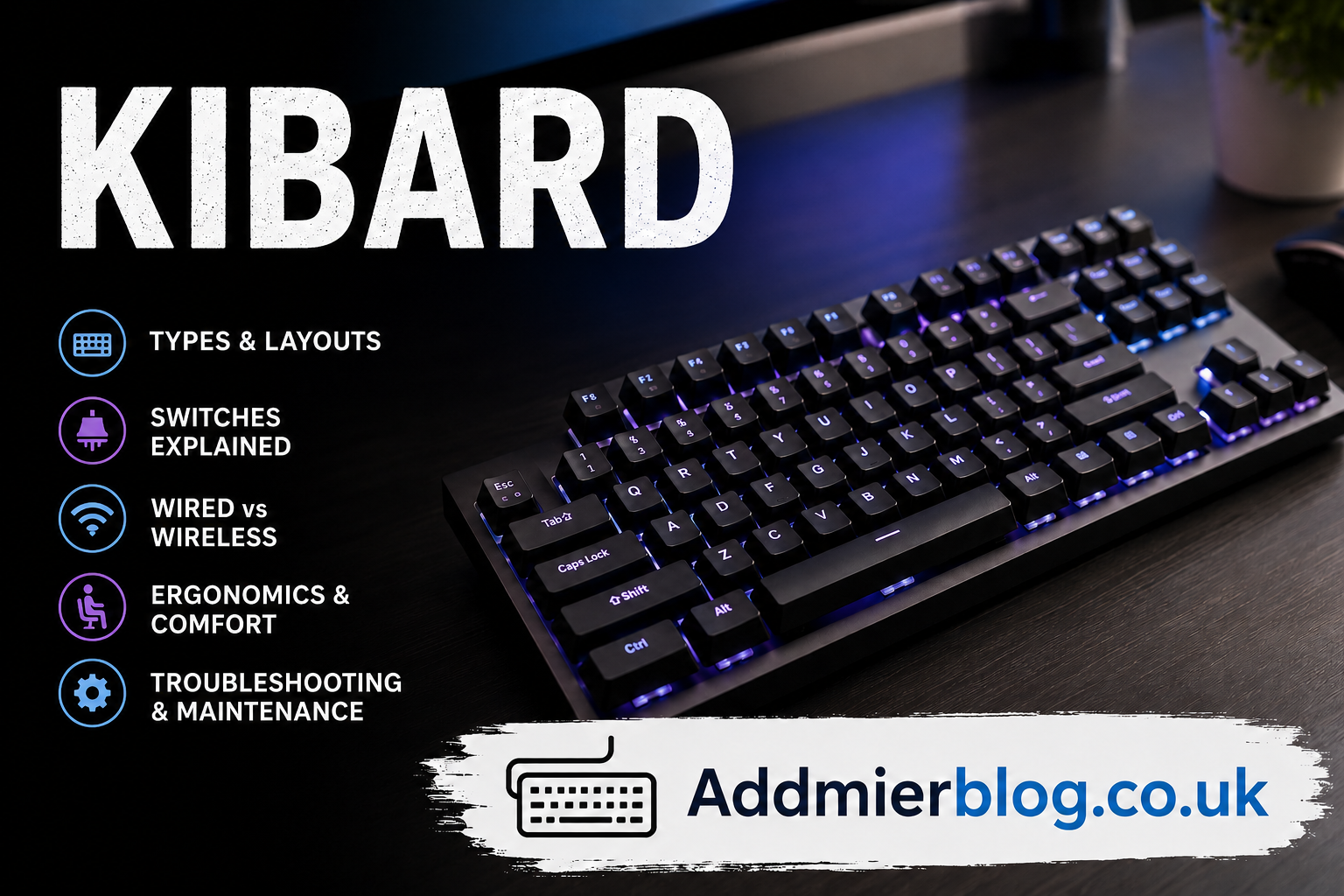
The term “kibard” is commonly used online as a phonetic or informal spelling of “keyboard.” People searching for it are usually looking for information about computer keyboards, typing devices, gaming models, or replacement hardware. Standard English dictionaries use the spelling “keyboard” for an arranged set of keys used to operate a computer, typewriter, musical instrument, or another device.
A computer keyboard is an input device. It allows a user to enter letters, numbers, symbols, commands, and shortcuts into a computer or other electronic system. Touchscreens and voice controls are common, but keyboards remain central to writing, programming, data entry, gaming, administration, and system control.
How a Keyboard Works
A keyboard converts a physical key press into a signal that a computer can interpret. When a user presses a key, the device detects its position and sends a code to the connected system. The operating system reads that code according to the active language, layout, application, and modifier keys.
This is why one key can perform several actions. The printed label is only part of the process because software settings determine the final result.
USB keyboards are normally recognised as Human Interface Devices, or HIDs. The USB Implementers Forum publishes specifications explaining how keyboards report input to a host system. These standards allow basic keyboards to work across many computers without a separate custom driver.
Main Parts of a Standard Keyboard
The alphanumeric section contains letters, number keys, punctuation marks, Enter, Backspace, Tab, Caps Lock, and the space bar. It is the main area used for typing.
The function row usually contains F1 through F12. Their roles change between programs, while laptops often combine them with controls for sound, brightness, media playback, or wireless settings.
Navigation keys include the arrows, Home, End, Page Up, Page Down, Insert, and Delete. They help users move through documents, edit text, and control software interfaces.
A full-size keyboard also includes a numeric keypad. Its calculator-style layout supports repeated number entry and is useful in accounting, finance, retail, and data-entry work.
Modifier keys such as Shift, Control, Alt, Option, Command, and the Windows key change the action of other keys. They make shortcuts possible and reduce dependence on a mouse.
The QWERTY Layout
QWERTY takes its name from the first six letters in the upper-left letter row. The layout came from typewriter design and later moved into teletypes, terminals, and computers.
A common story says QWERTY was designed only to slow typists. Its account says the arrangement supported faster work while reducing interference between typewriter mechanisms that could clash when certain keys were struck in sequence.
Once QWERTY was widely used in offices and schools, replacing it became difficult. The Dvorak layout was developed around letter-frequency analysis, but it did not displace QWERTY. Existing training, hardware, workplace habits, and software expectations reinforced the older arrangement.
Layouts also vary by language and region. Some countries use AZERTY or QWERTZ, while multilingual users may switch layouts through software. In that case, the character printed on a key may not match the one shown on screen.
Types of Keyboard Switches
The switch beneath each key determines how a press is detected. It affects typing feel, sound, thickness, durability, cost, and repair options.
Membrane keyboards use flexible layers and conductive contact points. Pressing a key pushes the layers together to complete a circuit. These models are common in offices, schools, and household computer sets because they are usually quiet and inexpensive. Individual switches are rarely easy to replace.
Scissor-switch keyboards use a small stabilising mechanism beneath each keycap. They are widely used in laptops and thin desktop keyboards. Their short travel allows a low-profile design, but repairs can be difficult because the parts are small and model-specific.
Mechanical keyboards place a separate switch beneath each key. Switches differ in required force, travel distance, sound, and whether they provide a noticeable bump or click. These keyboards are popular with writers, programmers, and gamers who want a particular feel or replaceable parts.
Optical and magnetic systems detect movement differently from conventional metal-contact switches. Some models allow adjustable actuation points. These options may help specialised gaming or custom setups, but they are not required for ordinary office work.
Keyboard Sizes
A full-size keyboard includes the typing area, function row, navigation cluster, and numeric keypad. It supports many tasks but takes more desk space.
A tenkeyless model removes the numeric keypad while retaining most other keys. It gives the mouse more room and suits users who do not enter numbers regularly.
Compact boards combine or remove more keys. A 75-percent keyboard keeps many functions in a tighter layout. A 65-percent model normally keeps arrow keys but removes the function row. A 60-percent board places several actions behind key combinations.
Smaller keyboards are easier to carry and can reduce the distance between the keyboard and mouse. The trade-off is greater dependence on shortcut layers. A spreadsheet user may need a numeric keypad, while a traveller may prefer a compact model.
Wired and Wireless Connections
A wired keyboard normally connects through USB. It receives power and sends input through the same cable. It avoids battery management and usually provides a stable connection.
Wireless keyboards use Bluetooth or a dedicated radio receiver. Bluetooth can connect directly to many computers, tablets, and phones. The Bluetooth Human Interface Device profile defines how wireless keyboards and related devices communicate with compatible systems.
Wireless designs reduce cable clutter and allow flexible placement, but users must consider charging, battery life, connection stability, wake-up delay, and compatibility. Some models can switch between several paired devices.
Physical and Virtual Keyboards
A physical keyboard gives tactile feedback because its keys move when pressed. Experienced users can often type without looking at every key, making physical models practical for long documents, programming, and repeated shortcuts.
A virtual keyboard appears on a touchscreen. It saves hardware space and can change according to language or application. It may include predictive text, swipe typing, emoji panels, voice input, and automatic correction. The lack of fixed physical key boundaries can increase mistakes for some users.
Researchers continue to test other forms of touch input. One published project proposed an “imaginary” keyboard using a deep neural decoder without a fixed visible typing area, showing how software may continue to change touchscreen text entry.
Ergonomics and Accessibility
Board height, key spacing, switch force, desk height, chair position, and mouse placement all influence comfort. The keyboard should normally be placed directly in front of the user, with relaxed shoulders, elbows close to the body, and wrists aligned with the forearms.
Split and ergonomic keyboards separate or angle key groups. Some include adjustable halves, tenting, curved key wells, or thumb clusters. These designs may make it easier for certain users to maintain a neutral wrist position, although they require time to learn.
Keyboard access is also important for people who cannot use a mouse easily. Operating systems can provide sticky keys, slow keys, repeat-delay controls, remapping, shortcuts, and full keyboard navigation. Apple’s accessibility guidance, for example, describes keyboard-only navigation and hardware keyboard adjustments for different mobility needs.
Software must support this access through a visible focus indicator, logical tab order, and controls that work without a mouse.
Common Problems and Troubleshooting
A key may stop responding because of dust, liquid damage, worn contacts, a loose cable, low battery power, pairing failure, or incorrect settings. A key that types the wrong character often means the operating system is using a different language layout.
Repeated characters may come from a stuck key, switch failure, or key-repeat setting. Delayed input can be caused by a weak wireless connection, interference, power-saving behaviour, or system load.
Basic troubleshooting should start with simple checks. Reconnect the cable or wireless receiver, try another USB port, recharge or replace the batteries, restart the device, confirm the active layout, and test the keyboard on another computer. Microsoft and Dell recommend checking power and connections before moving to more complex troubleshooting.
Cleaning should be done while the device is disconnected. A liquid spill requires immediate power removal because continuing to use the keyboard may increase internal damage.
Choosing a Keyboard
The main task should guide the purchase. Office users need a reliable layout, readable labels, reasonable noise, and consistent response. Spreadsheet work may require a numeric keypad. Gamers may care about rollover, response time, switch behaviour, and programmable controls. Travellers usually value compact size and low weight.
Comfort should be judged through key spacing, board height, wrist position, and required force. A keyboard that feels acceptable during a brief test may become uncomfortable after several hours.
Price alone does not determine suitability. A basic membrane model may be right for a shared office or occasional household use. A mechanical keyboard may suit someone who types for many hours and values individual switches, replaceable keycaps, or repair options.
Connection requirements also matter. A permanent desktop setup may benefit from a wired keyboard, while a person using several portable devices may prefer a Bluetooth model with multi-device switching.
Buyers should also check operating-system support, language layout, warranty, replacement-part availability, software requirements, battery type, and whether the keyboard stores custom settings internally.
Keyboard Maintenance
Routine cleaning can extend the keyboard’s service life. Dust can be removed with gentle air or a soft brush. Keycaps should only be removed when the design supports removal and the user knows how to reinstall them.
Food and drinks increase the risk of sticky keys, damaged membranes, and corrosion. Cleaning fluid should not be poured directly onto the keyboard. Manufacturers may provide model-specific instructions because materials and removable parts differ between products.
Cables should not be sharply bent or pulled from the connector. Wireless keyboards should not be stored for long periods with old disposable batteries inside because battery leakage can damage the contacts.
Users should also consider security. Unknown wireless devices, public computers, untrusted keyboard applications, and modified hardware can expose typed information. Bluetooth should be disabled when it is not needed, particularly in public environments, and sensitive information should only be entered through trusted hardware and software.
The Future of Keyboard Input
The physical keyboard is unlikely to disappear soon, but it continues to change. Manufacturers are developing thinner switches, adjustable actuation, programmable layers, device switching, modular controls, and more efficient wireless connections.
Software is also taking a larger role. Predictive text, grammar correction, automatic translation, voice input, gesture typing, and artificial intelligence can assist users before or after a key is pressed.
Accessibility systems may further reduce dependence on traditional hand movement. Eye tracking, voice control, switch controls, and dwell-based input already allow some users to type or navigate without operating a standard keyboard. These tools do not necessarily replace the keyboard for everyone, but they expand the meaning of text input.
The main challenge is balancing new functions with reliability. Users still expect a keyboard to register the correct key, respond without delay, work across common applications, and remain comfortable during repeated use.
Conclusion
“Kibard” generally refers to the keyboard, a device that turns key presses into digital input. Its purpose is simple, but its design involves choices about layout, switch type, size, connection method, comfort, accessibility, and software support.
A full-size wired model, compact wireless board, laptop keyboard, mechanical unit, split design, and touchscreen keyboard all perform the same broad job in different ways. Understanding these differences helps users choose the right device, solve common problems, and maintain it properly.